
Due to the sensitive nature of the data in the GCC Databases, additional connection requirements must be set.
- Request access through the Database Access Request Form.
- Ensure you have a GCC account – you cannot use the
@nebraska.eduaccount. - Although SSMS has worked, viewing encrypted data seems to work better with Azure Data Studio.
- For the database connection:
- Ensure the Encrypt parameter is set to STRICT.
- Enable
Always Encrypted - Disable
Secure Enclaves
- Ensure you are connected to NU’s VPN.
Viewing encrypted data also requires key read access to the GCC Key Vault. When attempting to connect, you will be prompted for additional account information for this process.
- Using Azure Data Studio:
- Navigate to File > Preferences > Settings.
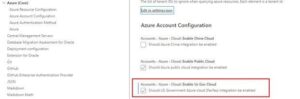
- Navigate to Extensions > Azure (core).
- Check the box for enabling US Gov Cloud
- Return to main window.
- In the Connections panel under Azure (US GOVERNMENT), select the ‘+’ sign, and then select the Azure (US GOVERNMENT) option.
- Enter your Azure government subscription address and authenticate to Azure.
If you are using something other than Azure Data Studio, you may need to use the Azure command line tools to ensure you are logged in to Azure GCC with your government cloud account.
Leave a Reply